
AYCM Booking Process
A quick and clear guide on how to book a table at SPINCITY using your AYCM membership, and what you need to pay attention to so your booking and refund work correctly.
AYCM can only be used for standard table bookings. It cannot be used for SPINCITY events such as training sessions, group trainings, tournaments, social nights, camps, or any other special events unless explicitly stated otherwise.
When can AYCM be used?
This is one of the most important rules. AYCM bookings are not available in every time slot.
On Saturdays and Sundays, AYCM can be used all day.
From Monday to Friday, AYCM bookings are available only during these time windows:
Step by step
The full process is shown below in a simple and easy-to-follow way.
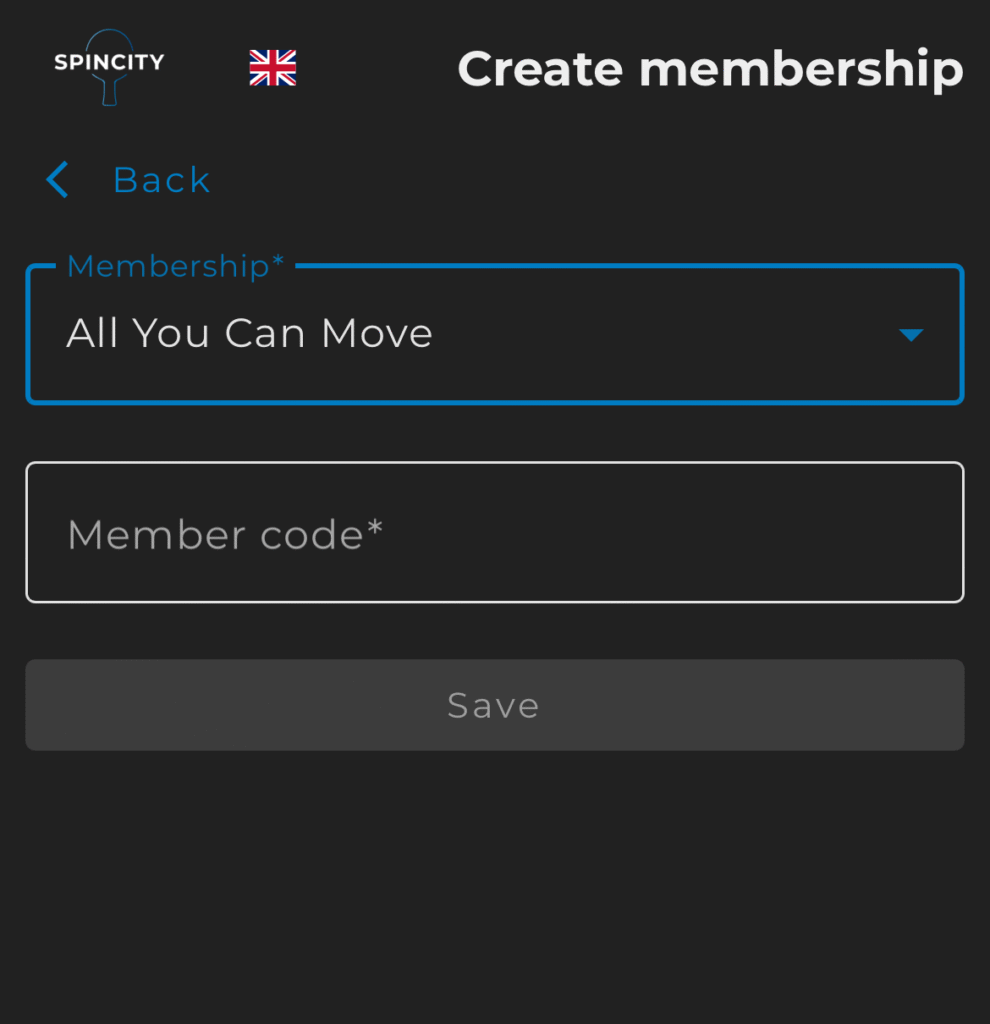
- Create an account in the SPINCITY system.
- Go to Account → Memberships.
- Click Create.
- Select All You Can Move (AYCM).
- Enter your membership ID using numbers only, without “KR”.
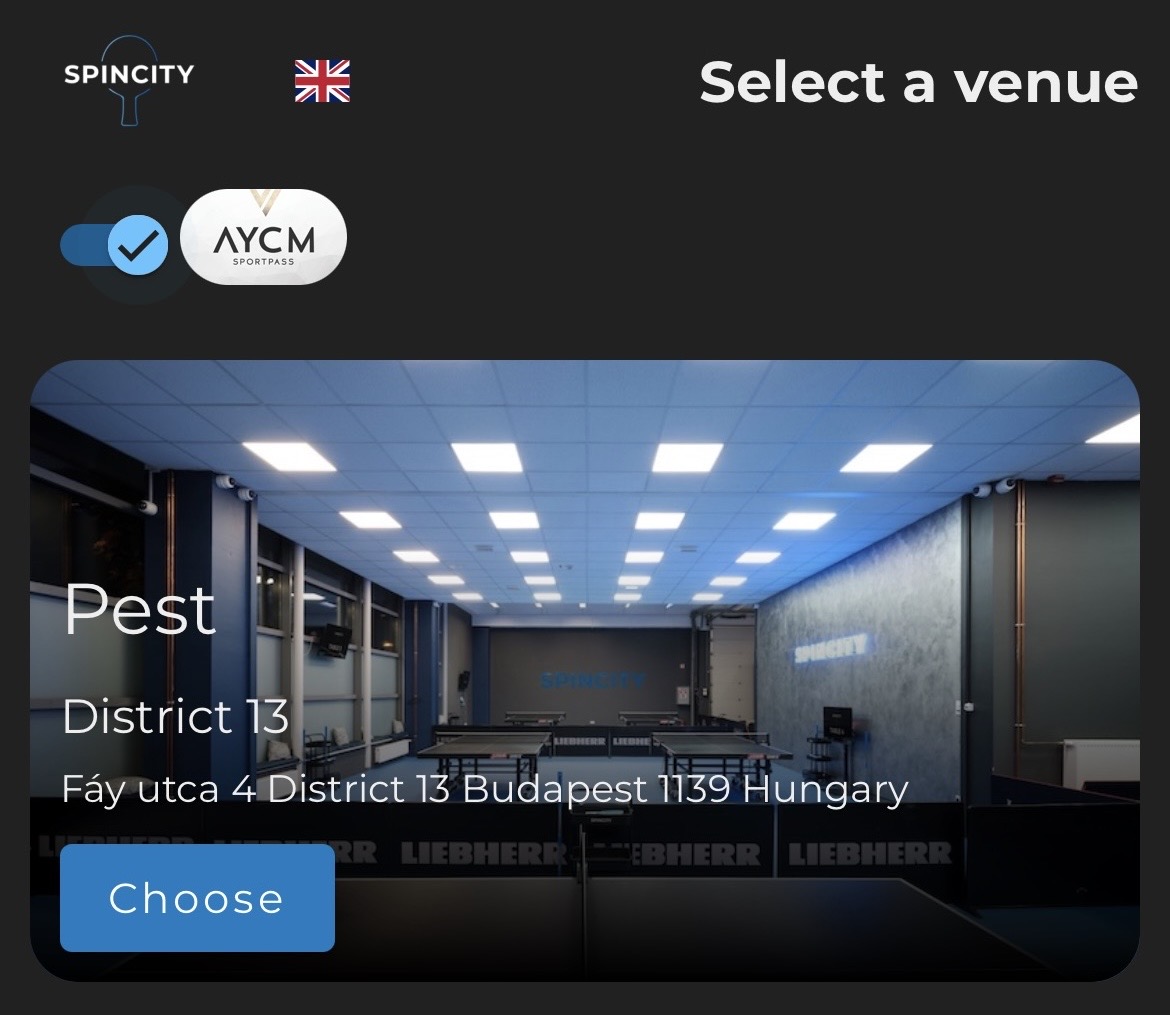
- Go to the Booking menu.
- Select the AYCM option in the top left corner.
- Choose your venue, time slot, and table.
- Complete the online payment — only then is the booking valid.
- After the booking is confirmed, enter the venue using your door code or the Open Door button.
- Open the AYCM app.
- Scan the QR code at the entrance.
- This is very important: without check-in, the refund will not start.
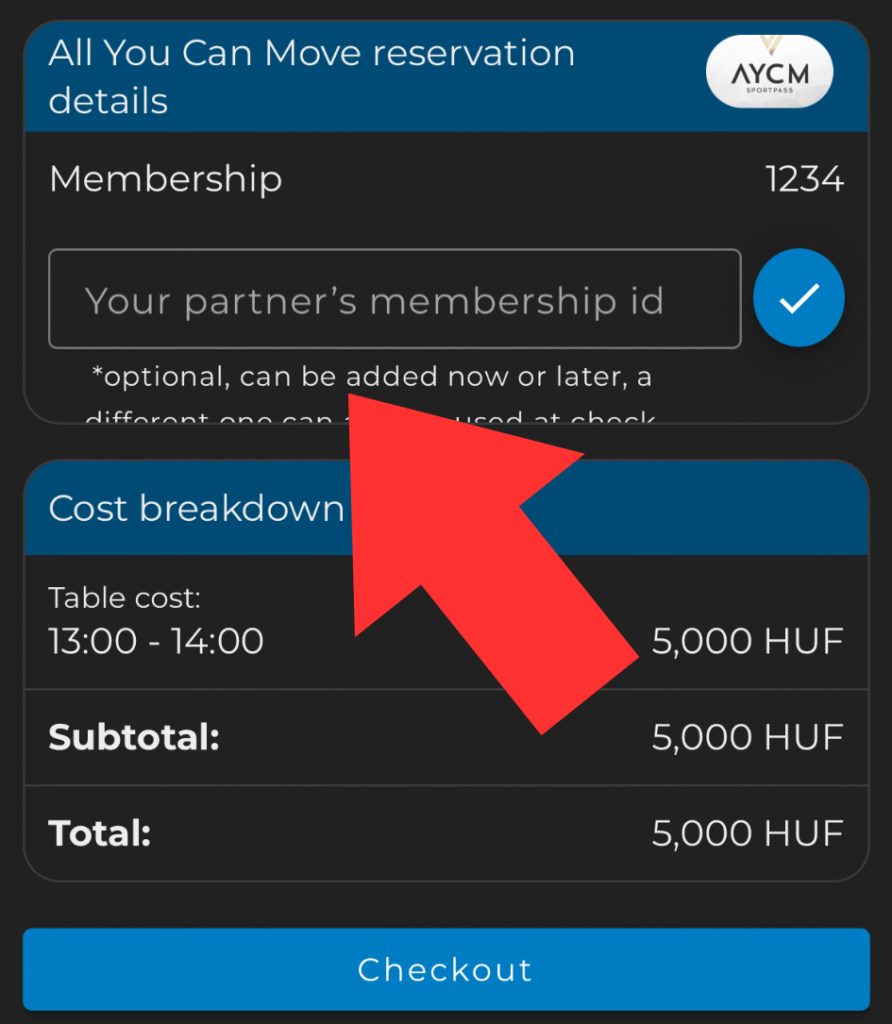
Add another AYCM user
If two people are playing, the second AYCM user can be added during the booking or later in the booking details by entering the other user’s membership ID.
This is not required. If only 1 AYCM user checks in, a 50% refund will still be processed.
Refund
The refund amount depends on how many AYCM users complete the check-in successfully.
If 1 AYCM member checks in
If 2 AYCM members check in
No refund without check-in
Frequently Asked Questions
No. The booking is only valid if the online payment has also been completed.
For AYCM bookings, the amount is first held on the card. After check-in, the refund is processed automatically.
In that case, the refund will not start and the full amount will be charged.
AYCM bookings can be made up to 1 week in advance.
Ready to book?
Register, add your AYCM membership, and then start your booking in the SPINCITY system.